A mobile bug report that says “app crashed after tapping save” is useful, but incomplete. A report that includes the exact screen, device model, Android version, reproduction steps, screenshot, and relevant logcat lines is much harder to ignore and much easier to fix.
Logcat is Android’s continuous stream of system and app logs. It includes crashes, warnings, lifecycle events, permission problems, network hints, and messages written by the app. QA engineers do not need to understand every line. They need to know how to filter the noise and capture the evidence that explains a failure.
Start With the Package Name
The fastest way to make logcat readable is to filter by the app package. Without a package filter, Android logs from the OS, keyboard, launcher, Play services, and background apps all mix together. With a package filter, the stream becomes small enough to inspect during a test run.
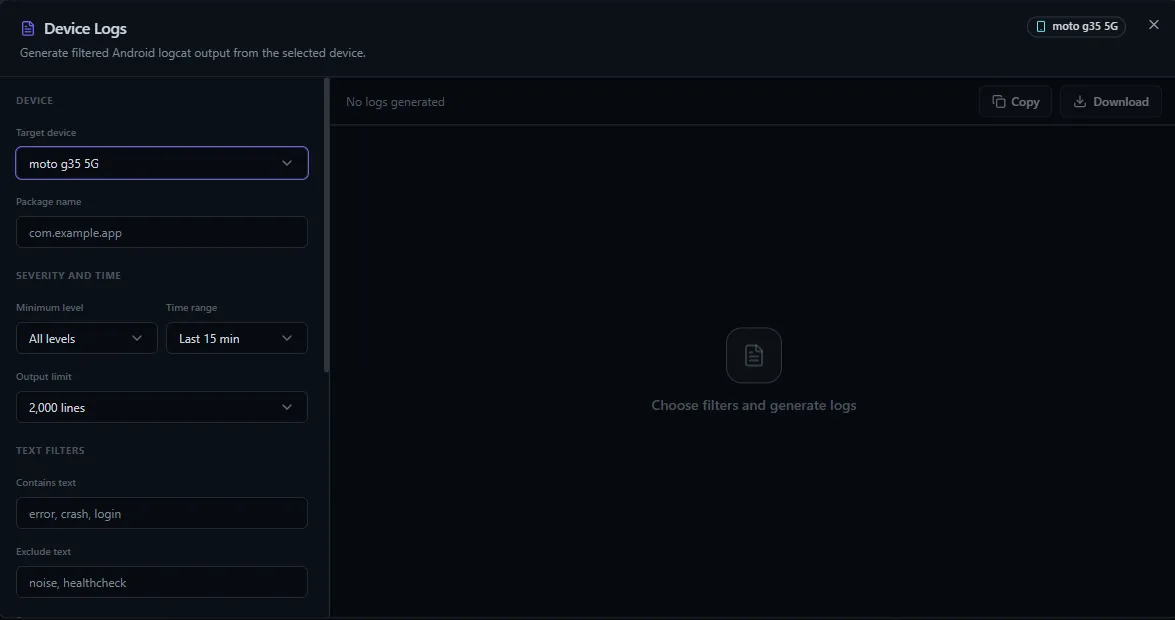
adb logcat --pid=$(adb shell pidof -s com.example.app)In OrbitTest Studio, the logcat panel lets you filter by package, PID, tag, severity, time range, and keyword patterns without leaving the QA workspace. That matters because the best logs are captured while the failure is happening, not after everyone has forgotten the exact steps.
Know the Signals That Matter
Most log lines are not relevant to a bug. Focus on signals that directly explain user-visible problems:
- FATAL EXCEPTION usually indicates a crash in the app process.
- ANR points to an app not responding, often from blocked main-thread work.
- SecurityException often means missing permissions or restricted platform access.
- SSLHandshakeException or network errors can explain failed login, sync, or checkout flows.
- Activity lifecycle logs help explain unexpected navigation or screen recreation.
When you see one of these, capture the surrounding lines too. The first error line is useful, but the lines before it often show the cause.
Match Logs to User Steps
Logs become much more useful when they are tied to steps. “Tap Save, observe spinner for 12 seconds, app returns to previous screen, logcat shows HTTP 401 from /profile” is clear. It tells the developer what the user did, what happened visually, and what the system reported.
If you are running an automated test, write steps that show intent. A step log like “tapByText(‘Save’)” is easier to connect to logcat than a raw coordinate tap. Good evidence joins the human story and the technical story.
Use Severity Carefully
It is tempting to filter only errors. That can hide useful warnings. Some apps log important network and validation information at the warning or info level. Start narrow when reproducing a known crash, but widen the filter when the cause is unclear.
A practical workflow is to reproduce once with package and error filters, then reproduce again with package plus warning and info if the first run does not explain the bug.
Capture Device Context
Logcat evidence is strongest when it includes device context. Android version, device model, screen size, app version, network state, battery optimization, and whether the app was freshly installed can all change behavior. A bug that only happens on Android 12 with battery saver enabled is a very different bug from one that happens everywhere.
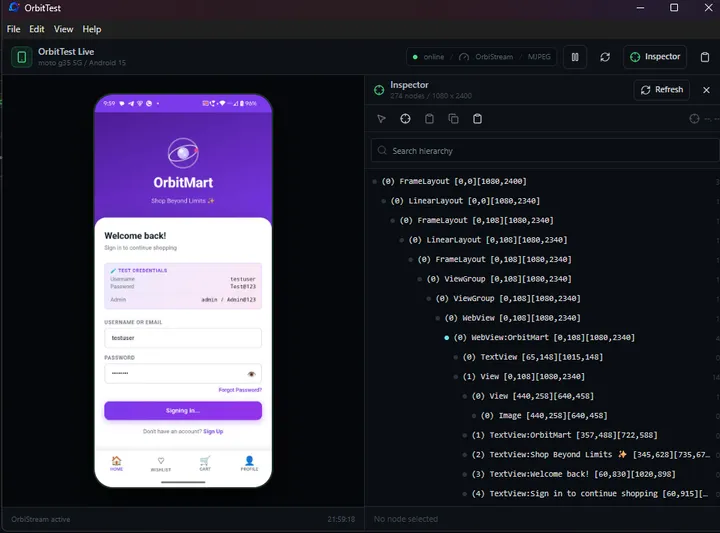
OrbitTest Studio shows device status and can keep the device mirror, log stream, and test output in one place. That reduces the chance of losing context while moving between tools.
Clean Logs Before Sharing
Logs can contain tokens, email addresses, URLs, device IDs, or private server details. Before attaching logcat to an issue, scan it for sensitive data. Share the smallest useful slice: a few seconds before the failure, the failure itself, and a few seconds after.
This keeps the bug report focused and safer to distribute across a team.
What a Strong Mobile Bug Report Includes
A high-quality Android bug report should include the test build, device and OS, exact steps, expected result, actual result, screenshot or recording, and filtered logcat. If the issue is automated, include the report artifact and the failed test name. If it is manual, include timestamps so logs can be matched to actions.
This level of detail changes the conversation. Instead of asking QA to “try again,” the developer can start investigating the code path that failed.
The Practical Value
Logcat is not glamorous, but it is one of the most useful tools in Android QA. It helps confirm crashes, explain silent failures, expose permission mistakes, and distinguish product bugs from environment problems.
Used alongside screenshots, recordings, and readable test steps, it gives mobile teams the evidence they need to fix bugs faster.